
Note: before starting this tutorial, you must have completed the tutorials associated with topography processing.
The WaterSed Input Generator tool transforms a land use map and a soil map into 5 hydrodynamic property maps that can be used by the WaterSed model. This transformation is performed using 2 reclassification tables. The tool also generates the 2 maps characterizing the modeled rainfall event.
Create the OCC_SOL file and the DATA_BASE file in the TUTORIEL/PREPROCESSING file
Unzip tuto_ws_input_generator.zip in the OCC_SOL file.
Launch SAGA GIS.
Step 1 : Convert vector maps to raster format
Open button and point to the occ_sol.shp file. Press Open in the bottom right-hand corner of the window. Repeat the operation with the sol.shp file.

Both shapefiles appear in the Data tab and are automatically classified in Data, Shapes, Polygon.
Import the 1 m resolution mnt_fill.sgrd grid (produced during the topography tutorial). The grid appears in the Data tab, then in Data, Grids.

To view the attribute table for the occ_sol.shp layer, right-click on the layer then Attributes then Show. The attribute table contains a CODE_LU field with a code ranging from 1 to 20. The land use class associated with each code can be seen in the nomenclature_occsol.txt file.
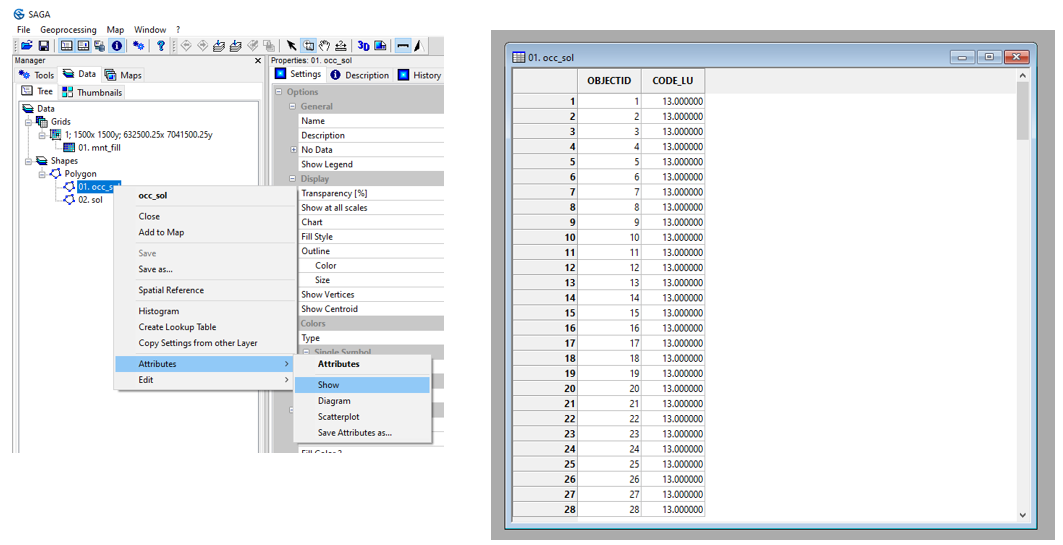
Repeat for sol.shp. In this tutorial, only one soil type is considered, with CODE_SOIL equal to 1.
The next step is to transform the two vector maps into raster maps at the resolution of mnt_fill.sgrd, using the Shapes to Grid tool.
Tools tab <> Grid <> Gridding <> Shapes to Grid
Double-click Shapes to Grid. Select occ_sol from the Shapes menu and the CODE_LU field from the Attribute menu. In the Target Grid System menu, choose grid or grid system and specify the grid system for mnt_fill. Click on Okay.
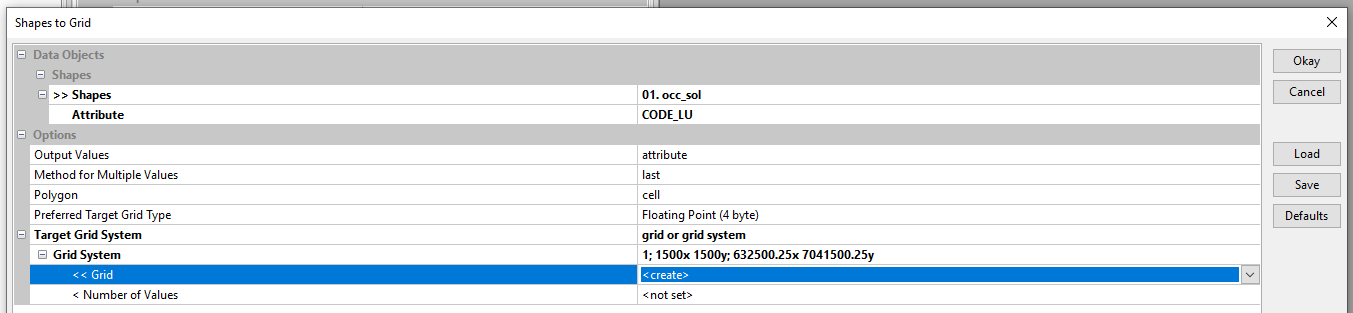
Repeat the operation for sol.shp, specifying CODE_SOIL in the Attribute menu. Don’t forget to set <create> in the Grid menu.

The grids generated appear in the Data tab, then in Data, Grids under mnt_fill.sgrd.

To view a grid (e.g. occ_sol), right-click on the grid then Add to Map. Use the Description tab to check that the transformation has been carried out correctly. On the right-of-way studied, the minimum CODE_LU is 1 and the maximum CODE_LU is 19.
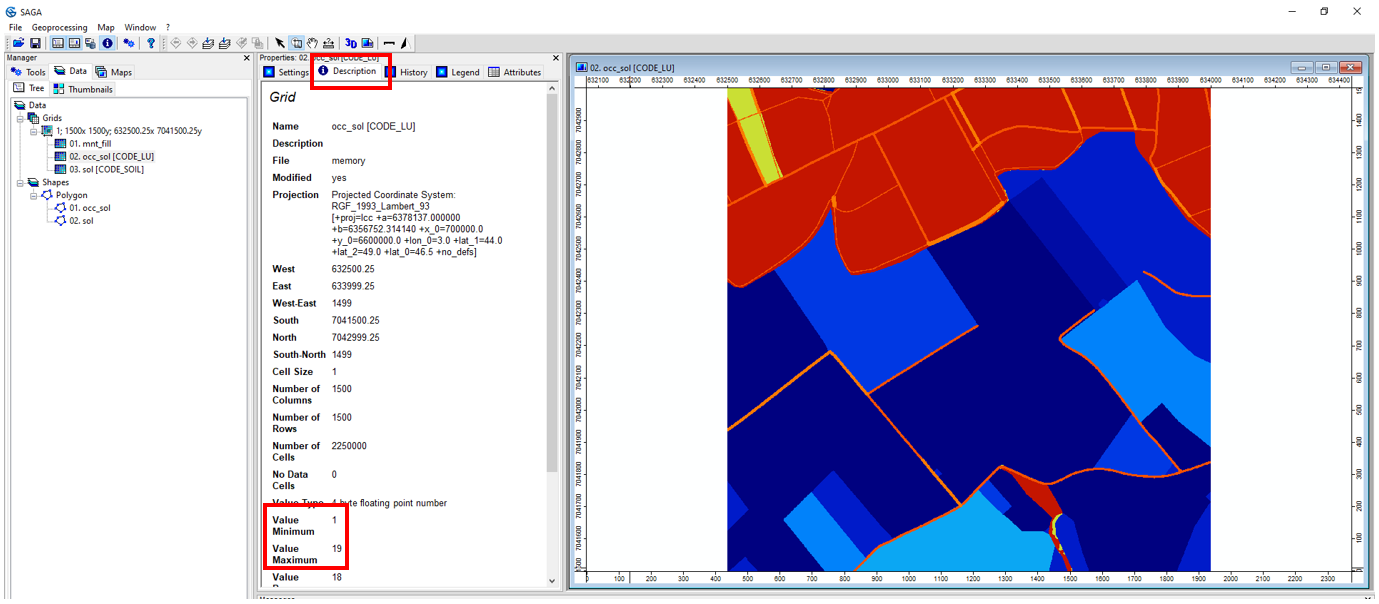
Save the occ_sol grid [CODE_LU] as code_lu. Save the ground grid [CODE_SOIL] as code_soil.
/TUTORIEL/PREPROCESSING/OCC_SOL/code_lu.sgrd
/TUTORIEL/PREPROCESSING/OCC_SOL/code_soil.sgrd
Step 2 : Import reclassification tables
Open button and point to the file propriete_hydrosed_occsol.txt. Press Open in the bottom right-hand corner of the window. Repeat the operation with the regle_imbibition.txt file.
Both tables appear in the Data tab and are automatically filed in Data, Tables.
To view propriete_hydrosed_occsol, right-click on the layer, then Show.
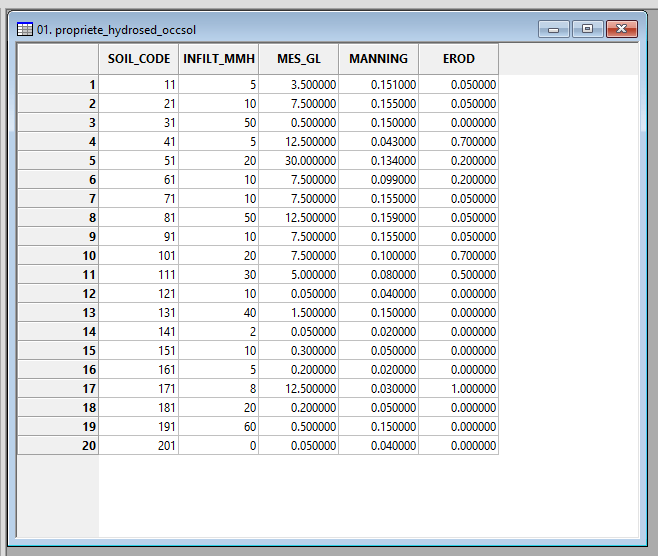
The CODE field is the concatenation of CODE_LU and CODE_SOIL. In our example, CODE_LU runs from 1 to 20 and CODE_SOIL is equal to 1. The CODE therefore ranges from 11 to 201.

Each CODE is characterized by an infiltration capacity (INFILT_MMH), a SPM concentration in runoff (MES_GL), a Manning’s ratio (MANNING) and an erodibility (EROD).
The WaterSed Input Generator tool concatenates CODE_LU and CODE_SOIL and reclassifies according to propriete_hydrosed_occsol to generate the 4 property maps.
The fifth property mapping (imbibition) is produced using regle_imbibition. To view regle_imbition, right-click on the layer, then Show.

The INFILT_MMH field corresponds to infiltration capacity and the IMBIBITION_MM field to imbibition. The imbibition grid is determined by reclassifying the infiltration capacity grid, generated using the previous table.
Note: it is imperative that the various infiltration capacity values in the propriete_hydrosed_occsol table are present in the regle_imbibition table. Otherwise, reclassification is not possible and the WaterSed Input Generator tool will generate NoData.
Step 3 : WaterSed Inputs Generator
Download WaterSed Input Generator from the Téléchargement tab and install the tool on SAGA GIS with a drag and drop. The tool is accessible from :
Tools <> Tool Chains <> WaterSed <> WaterSed Inputs Generator

Load mnt_fill.sgrd Grid System in Inputs/Outputs. In the Land use map menu, point to occ_sol [CODE_LU]. In the Soil map menu, point to sol [CODE_SOIL].
In the Land use and soil properties menu, load the propriete_hydrosed_occsol table and fill in the required fields. In the Initial conditions menu, load the regle_imbibition table and fill in the two requested fields
The tool also generates the two maps characterizing the modeled rainfall event. In this tutorial, we’ll look at a rainfall of 22 mm over 180 min. Replace value 0 for Depth (mm) by 22 and by 180 for Effective time (min). Click on Okay.
The maps produced appear in the Data tab, in the same Grid System as mnt_fill, occ_sol [CODE_LU] and sol [CODE_SOIL].

Save all grids produced in the INPUT folder.
/TUTORIEL/PREPROCESSING/DATA_BASE/infiltration_capacity_mmh
/TUTORIEL/PREPROCESSING/DATA_BASE/manning
/TUTORIEL/PREPROCESSING/DATA_BASE/suspended_sediment
/TUTORIEL/PREPROCESSING/DATA_BASE/erodibility
/TUTORIEL/PREPROCESSING/DATA_BASE/imbibition
/TUTORIEL/PREPROCESSING/DATA_BASE/rainfall_depth
/TUTORIEL/PREPROCESSING/DATA_BASE/effective_time
 WaterSed